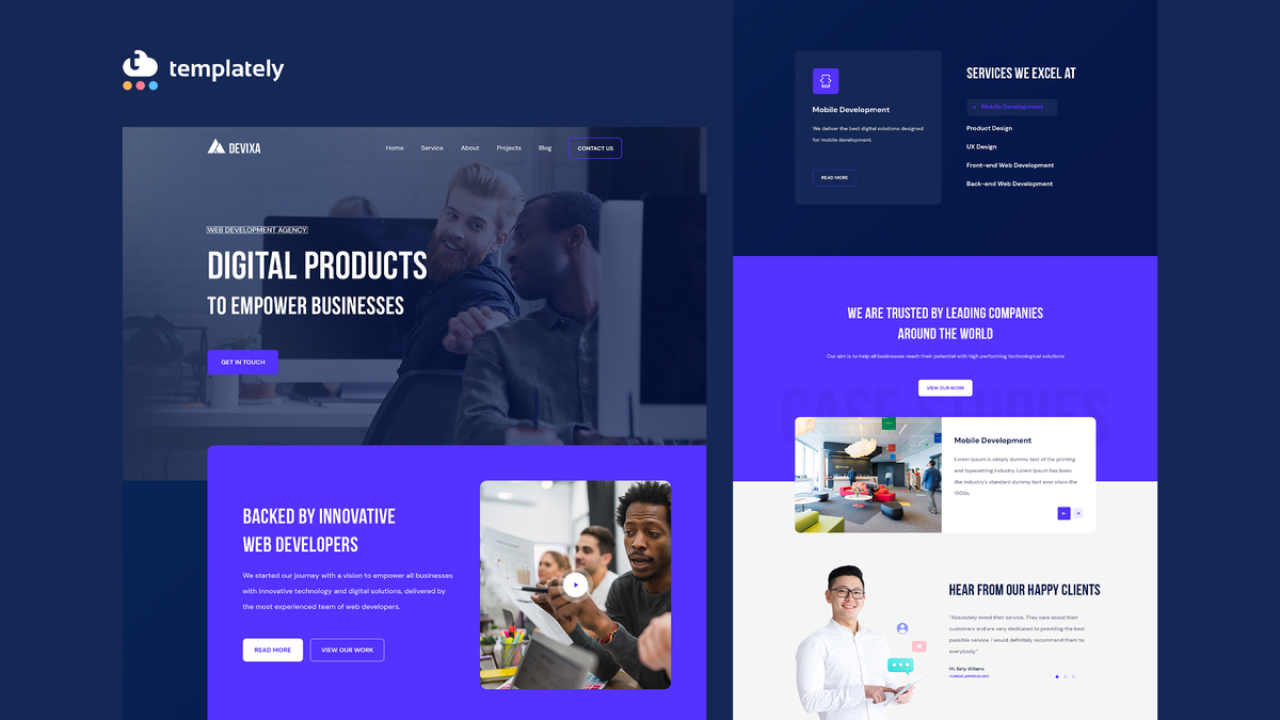
Most people don’t need a custom website from scratch. They need a fast, functional, and professional online presence—fast. That’s where a website template becomes essential.
Templates strip away months of development time. They provide structure, design, and responsiveness out of the box. But simply picking a template and slapping on your logo won’t cut it. Misuse leads to generic, underperforming sites. The real value comes from knowing how to adapt a template effectively—preserving its strengths while tailoring it to your brand, audience, and goals.
This guide breaks down exactly how to use a template to create a website that stands out, converts, and scales.
Why Start With a Template?
Templates aren’t shortcuts—they’re accelerators.
A well-designed template includes: - Mobile-responsive layouts - Pre-built navigation systems - SEO-friendly structure - Fast-loading design patterns - Accessibility basics
Building these from scratch takes weeks. Using a template reduces that to hours.
But templates aren’t one-size-fits-all. Many users select one based on looks alone, only to struggle with customization later. The key is alignment: choose a template built for your content type and business model.
For example: - A restaurant needs a menu layout, reservation integration, and location map. - A portfolio site needs image galleries, project filters, and case study formatting. - An e-commerce store needs product grids, cart logic, and checkout flow.
Pick a template built for your use case. Design matters, but functionality matters more.
Step-by-Step: Turning a Template Into Your Website
Going from template to live site isn’t drag-and-drop magic. It’s a structured process.
1. Define Your Website’s Core Purpose
Before touching any template, answer: - What action should visitors take? (Buy, contact, sign up, etc.) - Who is your target audience? - What content do you need to support your goal?
A template optimized for lead generation will fail if you’re trying to sell digital products. Clarity here prevents wasted effort.
2. Choose the Right Platform + Template
Not all templates work across platforms.
| Platform | Best For | Template Flexibility |
|---|---|---|
| WordPress | Full control, scalability | High (themes + page builders) |
| Webflow | Design precision, interactivity | High (visual dev) |
| Wix | Simplicity, speed | Medium (locked grids) |
| Squarespace | Aesthetic, portfolios | Medium (styling only) |
| Shopify | E-commerce only | High (but product-focused) |
Choose based on your technical comfort and long-term needs—not just the template’s appearance.
3. Customize Beyond the Basics
Most users stop at: - Changing colors - Replacing photos - Editing text
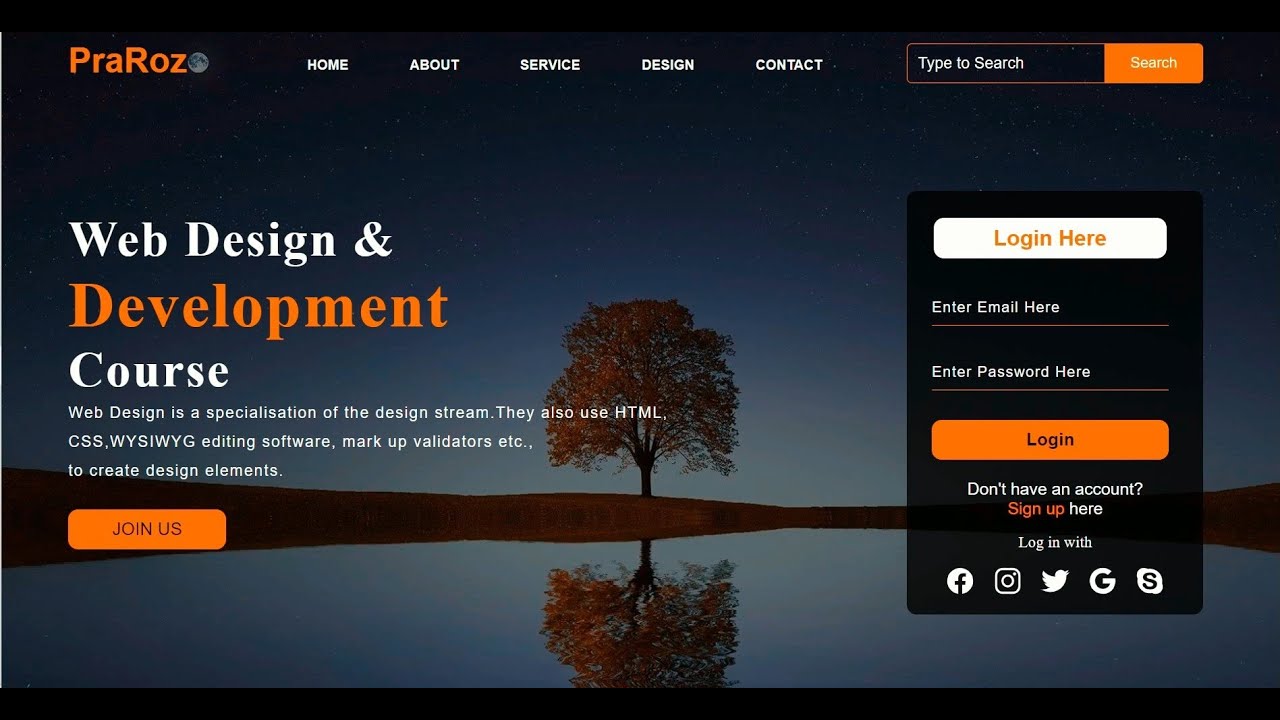
That’s where template misuse begins. To stand out:
Rewrite for voice and clarity Don’t just swap words. Rewrite headlines and CTAs to reflect your brand’s tone. A law firm’s template should sound different than a startup’s—even if they use the same layout.
Reorganize for flow Don’t force your content into the template. Adjust sections to match your messaging. If the “About” section feels buried, move it. If testimonials convert well, make them larger.
Optimize load speed Templates often include unused features—animations, sliders, bloated scripts. Delete what you don’t need. A fast site beats a flashy one.
Test responsiveness Check your site on mobile, tablet, and desktop. Ensure buttons are tappable, text is readable, and forms don’t break.
Common Template Mistakes (And How to Avoid Them)
Even experienced users fall into these traps:
Mistake 1: Using Too
Many Fonts or Colors Templates often come with design systems. But users override them with random colors and multiple fonts. Result? Visual chaos.
Fix: Stick to 2 fonts (one for headings, one for body) and a 3-color palette (primary, secondary, neutral).
Mistake 2: Ignoring SEO Structure
Many templates have poor heading hierarchy or missing alt text fields.
Fix: Audit your template before use. Ensure H1s are unique per page, images support alt tags, and URLs are clean.
Mistake 3: Overloading with Widgets Adding live chats, social feeds, pop-ups, and countdown timers slows performance and distracts users.
Fix: Use only tools that support your primary goal. Remove anything that doesn’t convert.
Mistake 4: Skipping Mobile Optimization Some templates look great on desktop but collapse on mobile.
Fix: Always preview mobile view. Resize images, simplify menus, and test form inputs.
Top 5 Template Platforms to Create Your Website
Not all template providers are equal. These five offer the best balance of design, functionality, and ease:
| Platform | Best For | Pricing (Starting) | Customization Level |
|---|---|---|---|
| WordPress + Elementor | Full control, blogs, business sites | Free (hosting extra) | High |
| Webflow | Designers, agencies, complex layouts | $14/month | Very High |
| Wix | Beginners, small businesses | $16/month | Medium |
| Squarespace | Creatives, portfolios | $16/month | Medium |
| Carrd | Simple landing pages, MVP sites | $19/year | Low to Medium |
WordPress + Elementor dominates for flexibility. Thousands of free and premium templates, plus drag-and-drop editing. Ideal if you plan to scale.
Webflow shines for custom aesthetics. You can build near-code-quality sites visually. Steeper learning curve but unmatched control.
Wix is beginner-friendly but locks you into its ecosystem. Useful for quick launches.
Squarespace offers the best out-of-the-box designs. Photos and fonts look polished immediately—perfect for creatives.
Carrd is underrated. For single-page sites, it’s fast, cheap, and mobile-optimized. Great for side projects or prototypes.
When Templates Fall Short (And What to Do)
Templates aren’t perfect. Know their limitations:
Limited Functionality Need complex forms, member areas, or booking systems? Standard templates won’t cover it.
Solution: Use plugins (WordPress), embeds (Webflow), or third-party tools like Typeform or Calendly.
Brand Misalignment A template can feel “off-brand” even after customization.
Solution: Hire a designer to tweak the template’s CSS or build a child theme. Small changes—spacing, button styles, icon sets—can make it feel custom.
Scalability Issues Some templates don’t handle large content libraries or traffic spikes.
Solution: Migrate to a CMS like WordPress or headless platforms as you grow. Start with a template, then evolve.
Real-World Examples: Template to Website
Example 1: Local Bakery Template Used: WordPress Astra + Bakery Demo Customizations:
- Replaced generic images with real product photos
- Added online ordering via WooCommerce
- Simplified menu navigation for mobile
- Result: 40% increase in online orders in 3 months.
Example 2: Freelance Designer Template Used: Squarespace Brine Template Customizations:
- Restructured project order to highlight best work
- Added client testimonials in grid format
- Integrated contact form with Calendly booking
- Result: 3x more consultation requests.
Example 3: Startup Landing Page Template Used: Carrd Pro Template Customizations:
- Connected to Mailchimp for lead capture
- Animated CTA button for attention
- Used real user quotes instead of placeholder text
- Result: 22% conversion rate on email signups.
These weren’t cookie-cutter sites. They succeeded because the users adapted the template—not just filled it.
How to Future-Proof Your Template-Based Site
Templates can become outdated. Avoid tech debt with these habits:
- Update regularly: Patch themes, plugins, and core software.
- Backup often: Use offsite backups (e.g., UpdraftPlus, SiteGround).
- Monitor performance: Use Google PageSpeed Insights monthly.
- Audit content: Remove outdated pages, broken links, unused scripts.
- Plan for migration: If growth demands it, design a path to a custom build.
A template isn’t forever. It’s your launchpad.
Final Thoughts: Templates Are Tools, Not Crutches
A website template to create your site works—but only if you treat it as a foundation, not a final product.
The difference between a generic site and a high-performing one isn’t the template. It’s how you use it.
Choose wisely. Customize strategically. Optimize relentlessly.
Start with a template. Finish with a brand.
Frequently Asked Questions
Can I use a website template for e-commerce? Yes. Platforms like Shopify, WooCommerce, and BigCommerce offer templates built specifically for online stores with product grids, carts, and secure checkout.
Do templates affect SEO? They can. Well-coded templates help SEO with clean structure and speed. Poorly built ones hurt it with bloated code and bad markup. Always audit before launch.
Can I customize a template without coding? Most modern templates allow deep customization via drag-and-drop builders (Elementor, Webflow, Wix Editor). For advanced changes, CSS or developer help may be needed.
Are free templates safe to use? Some are. But free templates from untrusted sources may include malware or outdated code. Stick to official marketplaces like WordPress.org, ThemeForest, or platform-native libraries.
How do I make my template site look less generic? Use original photos, write unique copy, adjust spacing and typography, and add custom branding elements like icons or illustrations.
Can I switch templates after launching? Yes, but it’s risky. Switching can break layouts, links, and SEO. Always test on a staging site first and backup everything.
Do templates work on mobile? Most modern templates are responsive. But always test on real devices—some animations or menus don’t translate well to touchscreens.
FAQ
What should you look for in How to Use a Website Template to Create Your Site Fast? Focus on relevance, practical value, and how well the solution matches real user intent.
Is How to Use a Website Template to Create Your Site Fast suitable for beginners? That depends on the workflow, but a clear step-by-step approach usually makes it easier to start.
How do you compare options around How to Use a Website Template to Create Your Site Fast? Compare features, trust signals, limitations, pricing, and ease of implementation.
What mistakes should you avoid? Avoid generic choices, weak validation, and decisions based only on marketing claims.
What is the next best step? Shortlist the most relevant options, validate them quickly, and refine from real-world results.